 NitroWarpNitroWarp
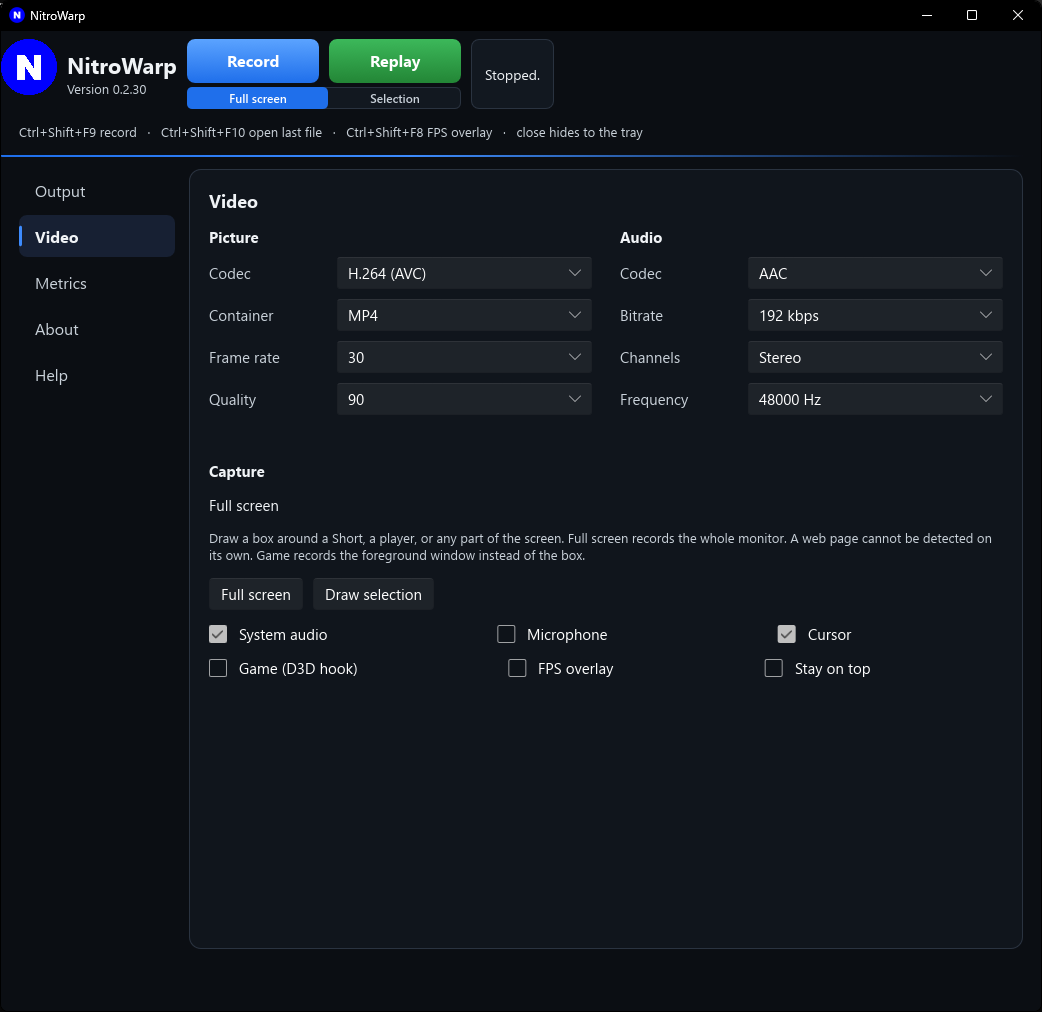
These settings are on the Video page. Leave them at the starting values until a recording gives you a reason to change them.
 Open full size
| Setting | Starts at | What it means |
|---|---|---|
| Codec | H.264 (AVC) | How the picture is compressed. |
| Container | MP4 | The kind of file that holds the picture and the sound. |
| Frame rate | 60 | How many pictures are saved each second. |
| Quality | 90 | How hard the picture is squeezed. Higher keeps more detail and makes a larger file. |
For H.264, NitroWarp tries the graphics card before it uses the CPU. The order is NVIDIA, then AMD, then Intel. If those cannot encode, the CPU does it. You do not pick the card yourself. The Metrics page can show how busy the encode engine was.
A codec is the method that turns the raw screen into a smaller file. It is separate from the container. The container is only the wrapper.
H.264 (AVC) is the one to keep. It is fast, especially on a graphics card, the files are a practical size, and they play on phones, editors, browsers, and YouTube. This is the right choice for tutorials, gameplay, and anything you will share.
H.265 is not in the list. It often needs an extra decoder license. H.264 plays in the same places without that.
A container holds the compressed picture, the sound, and the timestamps. People often call this the format. MP4 is the one to keep.
Start with MP4 and H.264. Use MKV when you want the extra safety on a long take, MOV for Apple editing, and WebM when the video is only for the web.
Frame rate is how many pictures are captured each second. A higher number is smoother and makes a larger file. NitroWarp starts at 60 so the cursor, scrolling, and games look fluid.
If the screen barely moves, 30 is enough. If the mouse or a game moves quickly, stay at 60.
Quality runs from 10 to 100, in steps of 10. A higher number keeps more detail and makes a larger file. A lower number squeezes harder. Small text can go soft.
NitroWarp starts at 90 so text and color stay close to the screen. That is the right default. Use 70 or 80 when the files are larger than you want and the picture still looks clear. 100 is the ceiling, for a master you will edit. Below 50, the picture is visibly softer. Use that only when the file must be very small.
Screen pictures of text compress well, so 100 is often unnecessary. Record a short sample at 90, watch it, and drop toward 70 only if you need the space.