 NitroWarp
A free screen recorder for Windows.
Download for WindowsVersion 0.2.30
- Free
- The video stays on your PC
- Hardware encode
- Optional metrics
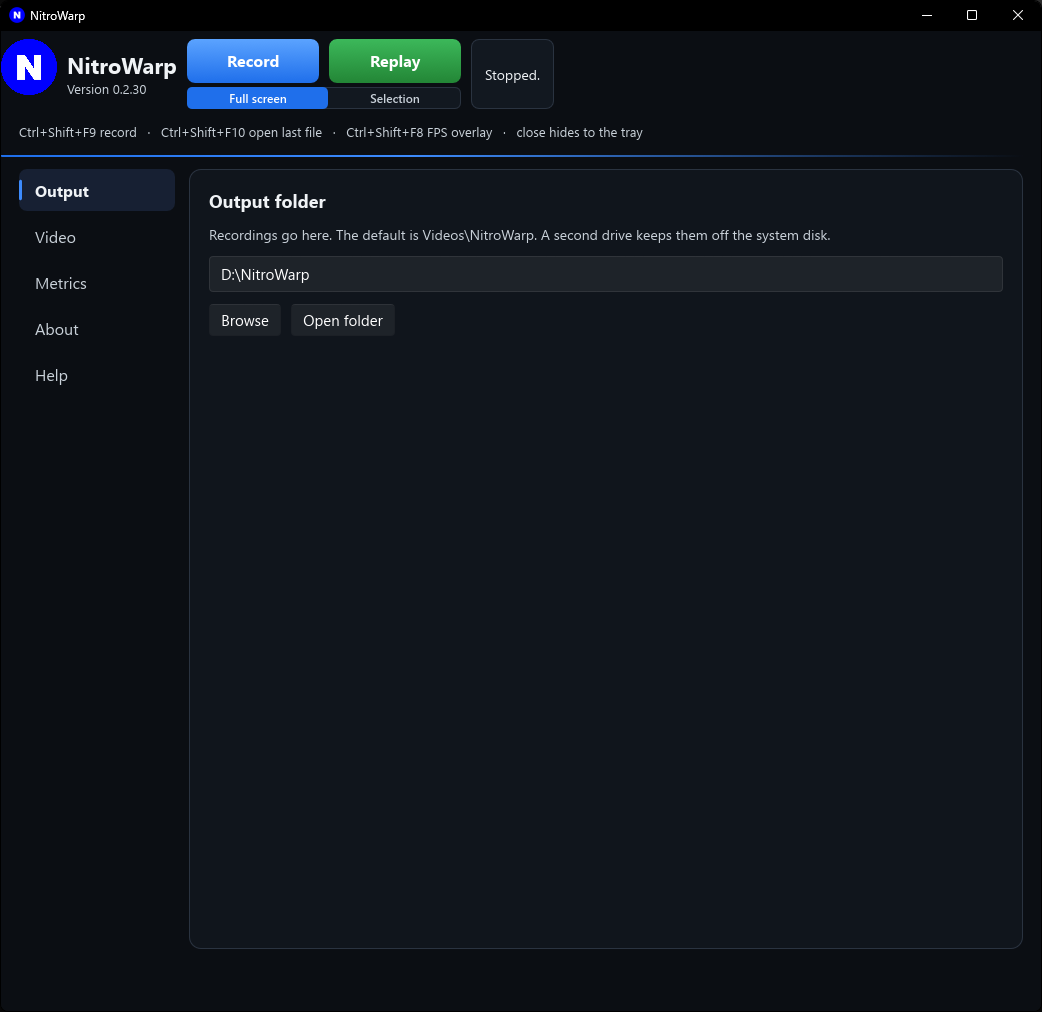
Output. Pick a folder, press Record, and press Stop. The pictures are the real window, at its real size. On a narrow screen, the bar under a picture moves the rest into view.
Screen recorders have been around for a long time. Around Y2K I purchased a 'lifetime' license for FRAPS. A fantastic screen recorder that I used for years. Then they stopped development, and I purchased a 'lifetime' license for Bandicam when it came out. However, years ago when I went to install Bandicam on a second system, I received an error "Must purchase license upgrade." Well that offended me and I wrote them about it only to receive the usual reply. Needless to say I was a tad offended.
So a few years ago I began fiddling with writing my own screen recorder (I work on many side projects), and it has finally reached a state that I feel I can allow others to use it. I have used it repeatedly for quite awhile recording Starship launches, football plays, the usual. An important issue, is that as I do with my other software applications NovelWarp (A free Audible book application for Windows), and SIPWarp (A free telephony app [Skype Replacement] for windows), I give the programs away for free (I believe in 'pay it forward'). Since I use all of these apps, if something breaks I fix it, state updates in the release notes, and upload a fresh version.
ABOUT
NitroWarp is a screen recorder for Windows that stays out of the way until you need it. You pick a folder, press Record, and press Stop. The file is an ordinary MP4, and Replay opens it in whatever player you already use.
The window is written in Rust with a thin Rust layer calling the engine which is mostly C++ that calls windows libraries directly, so it starts quickly and sits quietly while you work. The recording itself is done by Windows: the picture comes straight off the screen, and the video is encoded on the graphics card when the card can do it. NVIDIA, AMD, and Intel are each tried before the processor is asked to do that job. Sound is taken in shared mode, so a game, a browser, or another program can keep playing through the same speakers while you record.
You can take the whole monitor, draw a box around one part of the screen, or follow the game in front of you. A tall box is there for a Short, and a wide box is there for a normal picture. Close the window and the recording keeps going from the tray. The settings you chose are still there the next time you open it.
If you want statistics on how your PC performs during a recording, you may use the METRICS (see below) feature!
Nothing about the recording leaves your computer. There is no account to make and no data leaves your PC. The video stays in the folder you choose.
METRICS
The idea. While a recording is running, NitroWarp can keep a quiet second-by-second log of how hard the computer worked. The video itself stays clean. After the recording ends, a chart is created for you with options on which variables to view. The in-app chart is not great, so we also create a csv file that you can import into your app of choice to view and play around with. METRICS is fantastic for those who like bragging rights about their gaming rigs and or GPUs. Who has the best METRICS? :)
Why it is worth a sentence in the introduction. A hitch in a recording has a cause. Metrics lets a person see which part of the machine was busy at that second: NitroWarp, the whole computer, memory, the disk, the pictures coming off the screen, the encoder, the graphics card, or the card’s own memory. One line can fill the chart, so the peak is easy to read.
How someone uses it.
- Turn on Log metrics while recording. It stays off until then. The log is a small .metrics.csv beside the video, about one line each second.
- The chart is drawn after the recording stops. Opening the Metrics page does not load an old log by itself.
- The chart fills when you click Last recording, click Open CSV, or stop a recording while the Metrics page is already open.
What the lines answer.
- CPU is NitroWarp’s own share of the processor.
- System is how busy the whole computer was.
- RAM is the memory NitroWarp was using.
- Disk is how fast the video file grew that second.
- Unique fps is how many new pictures the screen actually produced.
- Encode fps is how many frames were written into the file, including repeated frames that keep the timing steady. When unique fps stays well below the rate you asked for, the desktop was not presenting pictures that fast.
- GPU encode is the busiest video-encode engine Windows reports.
- GPU 3D is the busiest 3D or copy engine. A high number during a game is the game drawing.
- GPU memory is how much of the graphics card’s own memory was in use. The top of that chart is the whole card, so a line near the top means the card is full. This is separate from RAM, which is only NitroWarp. A full card can stutter even when the percent lines are not at 100.
Read the GPU lines with the frame rate. GPU 3D near the top and unique fps below the rate you asked for means the card is spending itself on the game. GPU encode near the top, with encoded fps behind and the dropped count rising, means the encoder fell behind. High percents with the frame rate holding and dropped staying flat means the card is busy and still keeping up.
What a person can keep. Large view opens a 16:9 window for the same lines. Save PNG 1080p and Save PNG 4K write a picture of the lines that are turned on. The CSV opens in Excel, so the same recording can be shared as a chart or as the numbers.
In brief: “Metrics is an optional log of the recording itself: one line each second for processor, memory, disk, frame rate, the graphics card, and the card’s own memory, charted after you stop, and never drawn onto the video.”
CONCLUSION
So give NitroWarp a try. If you have an idea for a feature that you would like, send a note via the contact form and I will review it.
Enjoy the App!
--Patrick
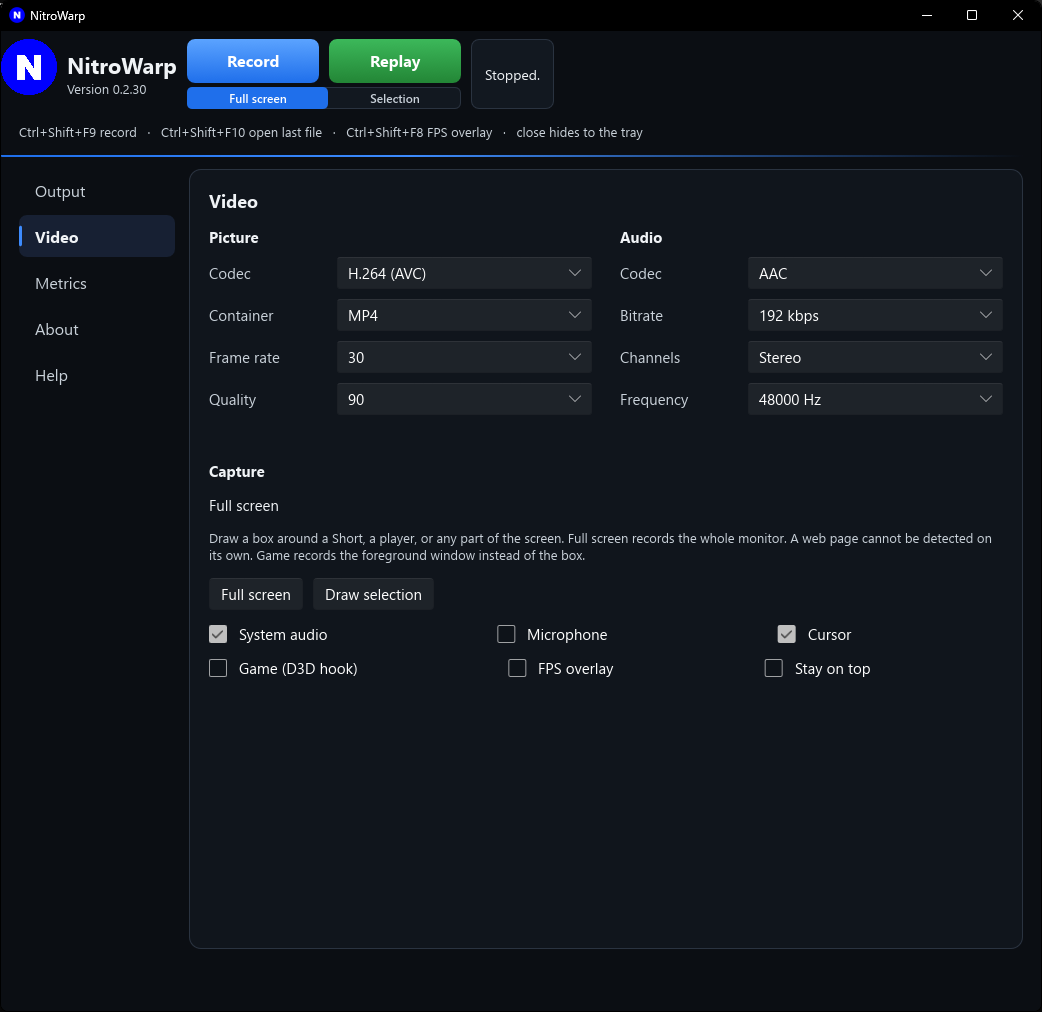
Video. The picture, the sound, and whether the recording follows the whole monitor, a box, or the game.
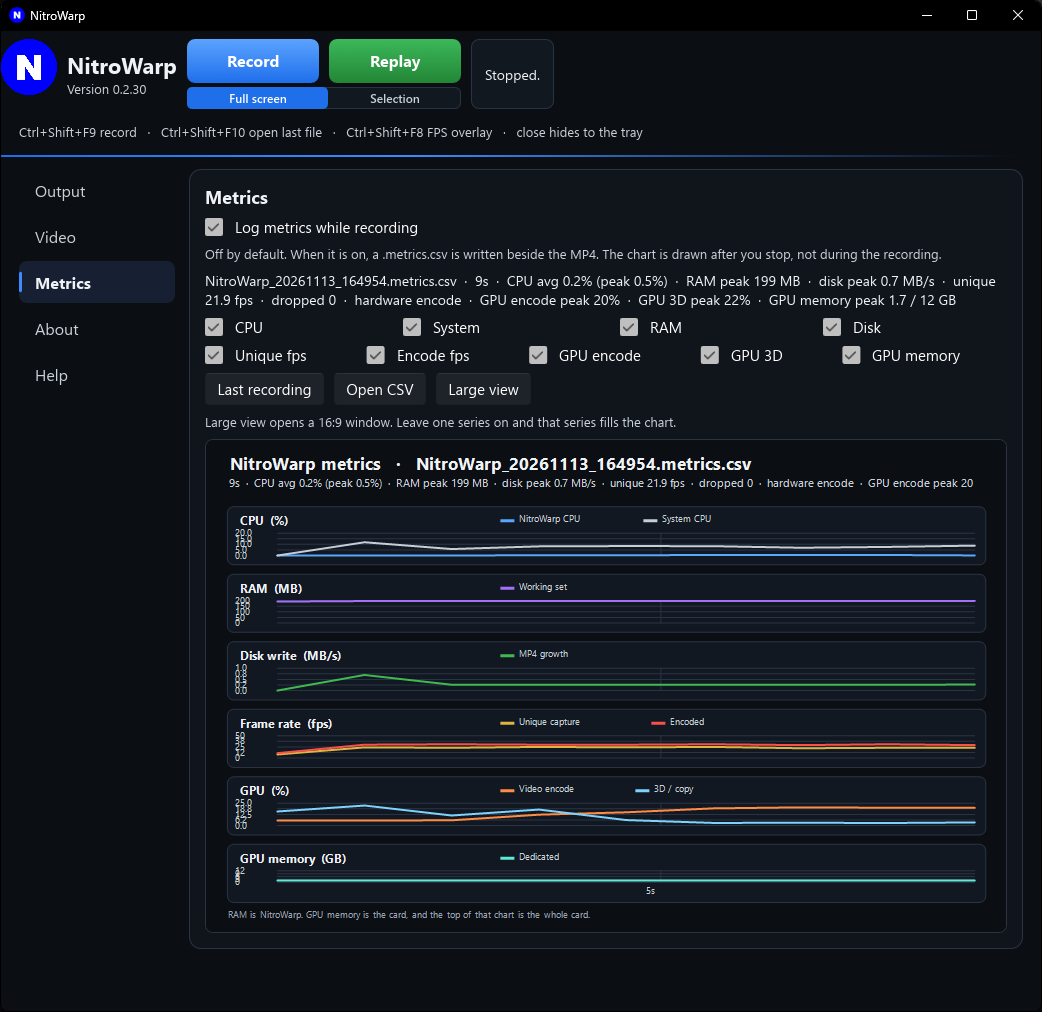
Metrics. The chart after a recording. Turn lines off until the one you care about fills the chart.
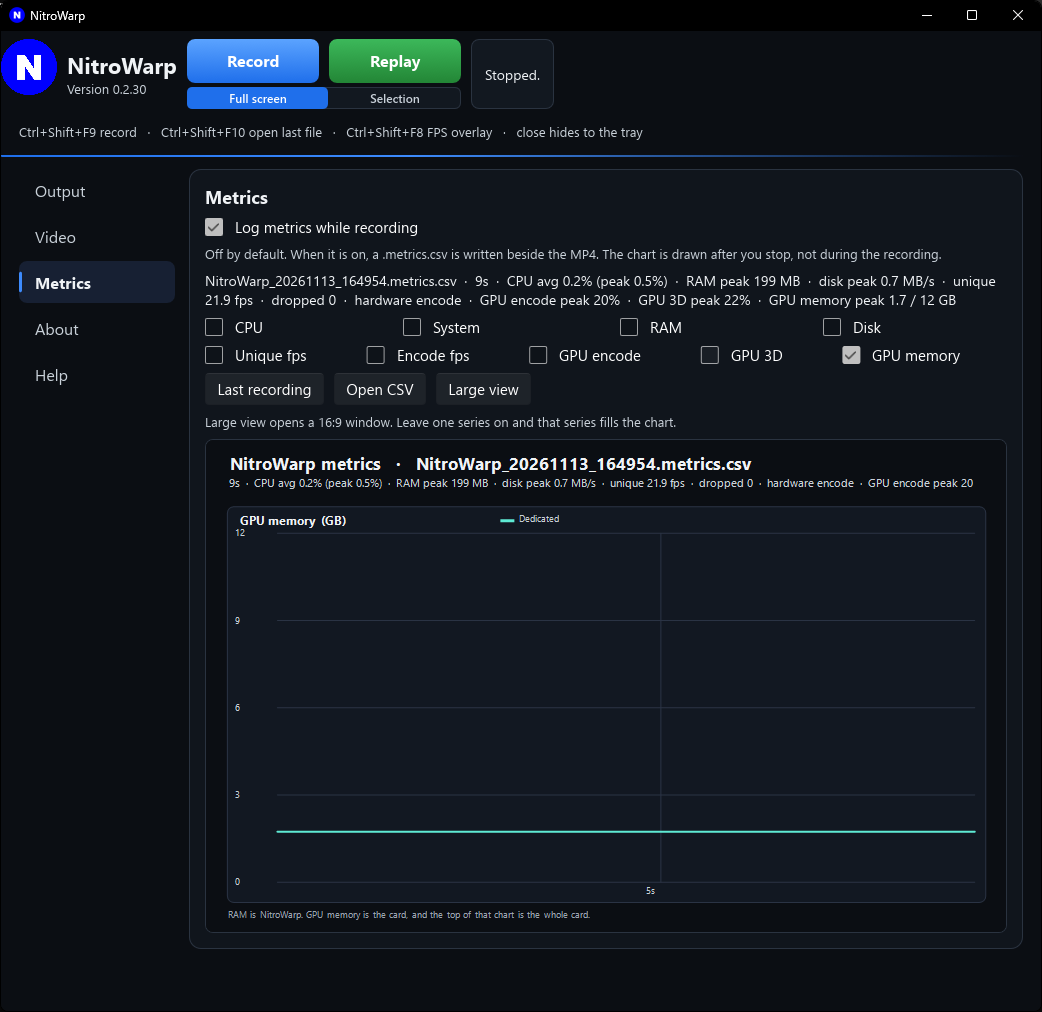
GPU memory. The card’s own memory. The top of that chart is the whole card. RAM, on the other lines, is only NitroWarp.
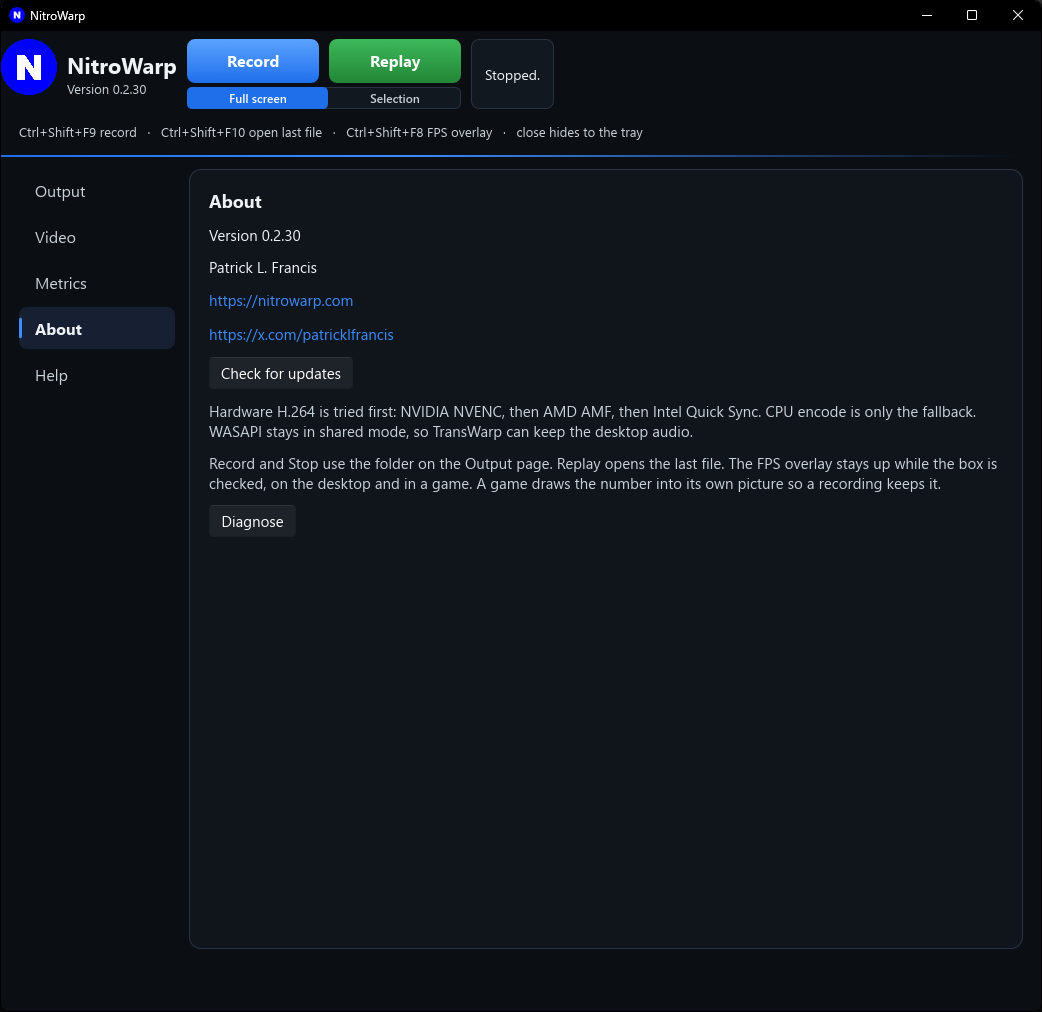
About. The version on this PC, Check for updates, and where to find Patrick.
Contact
If you find a bug, have an idea, or you would just like to say hello, send a note. A reply goes to the email you type here.
Patrick L. Francis · x.com/patricklfrancis